Widgets
Level Up Your Stream with Interactive Widgets
Level up your Twitch stream with StreamPlush by transforming your broadcast into a fully interactive experience through customizable widgets and real-time chat engagement.
Commands
Master Your Stream Chat Create custom commands and automated timers to engage your community and provide instant info effortlessly.
Commands
Master Your Stream Chat Create custom commands and automated timers to engage your community and provide instant info effortlessly.
Royal Throne
Seize the throne, rule the stream! Viewers use Bits to become King, but watch out—rivals can crush you from above to steal your crown. A high-stakes battle for status and revenge!
Royal Throne
Seize the throne, rule the stream! Viewers use Bits to become King, but watch out—rivals can crush you from above to steal your crown. A high-stakes battle for status and revenge!
Bit Earnable

Pool Jump
A fully customizable interactive mini-game where viewers jump into a pool via chat commands to earn points and skillfully avoid dangerous sharks.
Pool Jump
A fully customizable interactive mini-game where viewers jump into a pool via chat commands to earn points and skillfully avoid dangerous sharks.
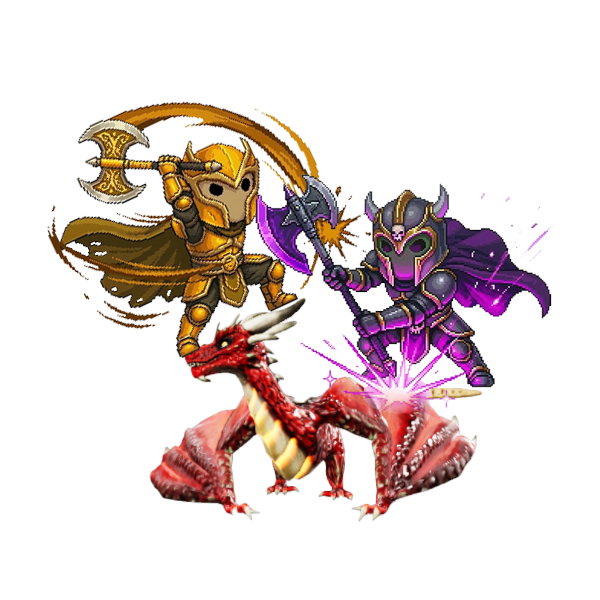
Dragon Hunters
A fully customizable community game widget where viewers attack a dragon via chat commands, gather loot, and work together to defeat the boss.
Dragon Hunters
A fully customizable community game widget where viewers attack a dragon via chat commands, gather loot, and work together to defeat the boss.
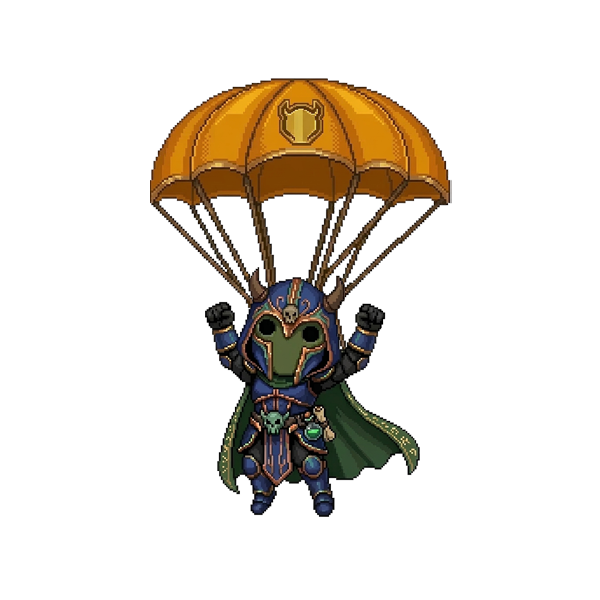
Survivor Battle Royale
A high-stakes, interactive battle royale widget where viewers join via chat, fight for survival in a pixel-art arena, and compete for random prizes from a weighted gift pool.
Survivor Battle Royale
A high-stakes, interactive battle royale widget where viewers join via chat, fight for survival in a pixel-art arena, and compete for random prizes from a weighted gift pool.
Poll
A fully customizable interactive poll widget that allows your viewers to vote directly via chat with real-time results displayed on your screen.
Poll
A fully customizable interactive poll widget that allows your viewers to vote directly via chat with real-time results displayed on your screen.
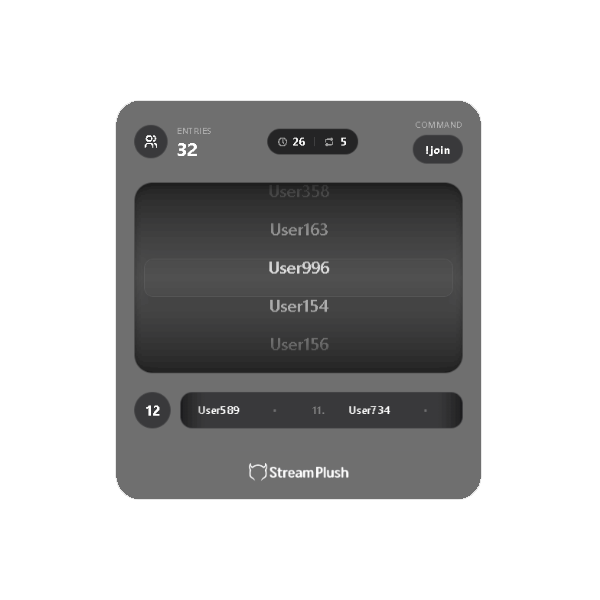
Giveaway
A fully customizable interactive giveaway widget that allows your viewers to easily join draws via chat, with winners announced live on your screen.
Giveaway
A fully customizable interactive giveaway widget that allows your viewers to easily join draws via chat, with winners announced live on your screen.
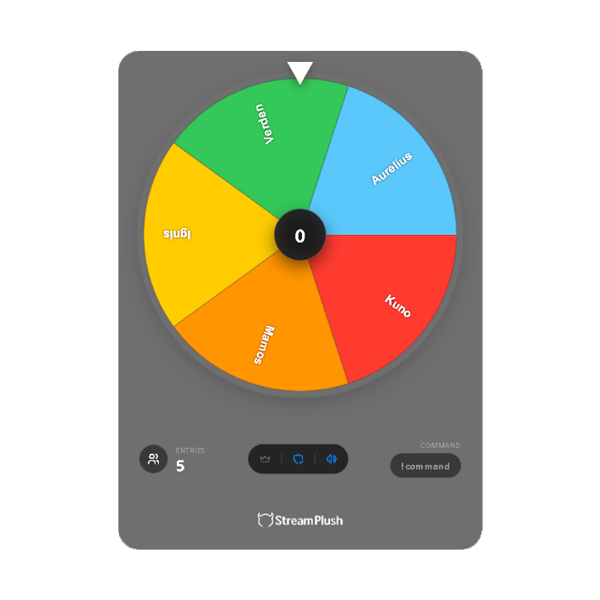
Whell
A fully customizable interactive spinning wheel widget that lets viewers join via chat. Spin in real-time to pick winners or eliminate participants with style.
Whell
A fully customizable interactive spinning wheel widget that lets viewers join via chat. Spin in real-time to pick winners or eliminate participants with style.
Commands
How to Use?
Activation: Once enabled on your dashboard, the widget works automatically in the background. No OBS Browser Source is required.
Creating Commands: Click "Add New Command" to define a response. Enter a Trigger (e.g., !discord) and the Message you want the bot to post.
Automated Timers: Toggle the Clock Icon to turn a command into a Timer. Set an interval (e.g., 5, 10, or 30 min) to have the bot post the message automatically.
Managing Status: Use the Status Toggle to enable or disable commands/timers instantly without deleting them.
Command Limit: You can manage up to 10 custom commands to ensure peak performance and stability.
Functions
Command Trigger: The keyword that triggers the bot's response when typed in chat.
Timer Mode: Automates your messages to post at regular intervals, perfect for social media or schedule reminders.
Status Toggle: Full control to pause/resume specific commands or timers whenever needed.
Smart Re-indexing: Deleting a command via the Trash Icon automatically reorganizes your list for a seamless experience.
Royal Throne
How to Use?
1. Setup: Copy the widget URL from the Royal Throne Settings panel and add it to your streaming software (OBS/Streamlabs) as a Browser Source.
2. Dimensions: For the correct display of the throne, animations, and characters, set the Browser Source dimensions to 800px (Width) x 800px (Height).
3. Twitch Extension: For the widget to function correctly, you must also add the official extension to your channel. Use the following link to get started: [Insert Example Link Here]
4. Price & Duration Settings: * Price: Select the required Bits for a viewer to ascend the throne from the dropdown menu.
Duration (Min): Define the total time a king reigns (e.g., 20 minutes) if no one challenges them.
Min Duration: This is the Protection Time. The current king cannot be dethroned until this period expires (e.g., 1 minute), ensuring a guaranteed stay on the throne.
5. Customization: * Default Throne: Choose the starting throne appearance from the available presets in the panel.
Viewer Interaction: Once a viewer takes the throne, they can select their own Throne Design, choose their King Character, enter a Custom Message, and pick a Sound Effect to announce their reign.
6. Throne Control Commands: The streamer can manage the widget using these customizable commands:
Hide Command: (default: !thronehide) Hides the throne from the screen.
Show Command: (default: !throneshow) Makes the throne visible again.
Clear Command: (default: !throneclear) Resets the current throne and clears the occupant.
7. Bot Customization: Personalize the chat experience by editing the automated messages:
New Occupant Message: Triggered when a viewer takes an empty throne (Variables: {user}, {minutes}, {message}).
Takeover Message: Triggered when a rival "crushes" the current king to seize the throne (Variables: {user}, {old_king}).
Pool Jump
How to Use?
Setup: Copy the widget URL from the top of the settings panel and create a Browser Source in OBS/Streamlabs. For the most immersive experience, it is highly recommended to add this as a Full Screen source with dimensions set to 1920x1080 px.
Core Commands: Viewers can join the mini-game by typing the User Join Command (default: !jump) in chat. If you need to clear the pool manually, use the Reset Command (default: !resetpool).
Automated Management: You can enable Auto Reset to automatically clear the pool at specific intervals, such as every 5 minutes. Additionally, you can set a Max Participants Limit (up to 1000) to maintain game balance.
Visual Customization: Adjust the Pool Position slider to move the widget horizontally across your screen. You can also toggle the Rank Table and Participant Count visibility to match your stream's layout.
Access & Restrictions: Manage participation by restricting entry to Subscribers Only, Followers Only, or allowing Moderators to join the fun.
Command List & Functions
!jump: The primary command for viewers to enter the pool and start their jump.
!resetpool: Instantly clears all participants and resets the game state.
Automated Chat Messages: The bot provides real-time updates for events like a New Leader being crowned or a user being Eaten by a Shark.
Dragon Hunters
How to Use?
Setup: Copy the widget URL from the top of the panel and add it as a Browser Source in OBS/Streamlabs. For the best visual experience and to ensure the dragon animations fit properly, set the dimensions to Full Screen (1920x1080 px).
Battle Commands: Viewers join the hunt by using the User Join Command (default: !dragon). If you need to clear the game or manually trigger a new round, use the Reset Command (default: !resetdragon).
Gameplay & Multi-Participation: To keep the action intense, you can enable Allow Multi-Participation. This allows users to attack the dragon multiple times based on the Multi Participants Interval (e.g., every 10 seconds).
Dragon Stats & Visuals: Customize the difficulty by setting the Dragon max HP (e.g., 5,000). You can also use the Dragon Position slider to move the beast and its health bar horizontally across your stream.
Loot & Rewards: When the dragon is defeated, a random gift is awarded from your Dragon Box Gift Pool. You can add custom gifts and set their drop probabilities using the Change Percent (%) field.
Access Control: Manage the hunters by toggling participation for Subscribers Only, Followers Only, or allowing Moderators to join the fight.
Command List & Functions
!dragon: The primary command for viewers to attack the dragon and join the hunt.
!resetdragon: Instantly resets the dragon's health and starts a new battle.
Auto Reset: If enabled, the game will automatically reset after the dragon is defeated or after a specific Reset Interval.
Custom Chat Messages: The bot will automatically announce events like the Winner Announcement (who landed the final blow), when a Hunter is Eliminated, or when the Next Battle is about to begin.
Survivor Battle Royale
How to Use?
Setup: Copy the widget URL from the Survivor Battle Settings panel and add it to your streaming software (OBS/Streamlabs) as a Browser Source.
Dimensions: For the correct display of the arena and animations, set the Browser Source dimensions to 800px (Width) x 500px (Height).
Joining the Fray: Viewers enter the battle by typing the Join Command (default: !joinsurvivor) in chat.
Battle Management: The streamer can manually begin the fight using the Start Battle Command (default: !survivorstart) or reset the arena with the Reset Command (default: !survivorreset).
Automatic Controls: * Auto Start: Enable this to automatically trigger the battle once the Participant Limit (e.g., 40 users) is reached.
Auto Reset: Set a delay (e.g., 10 seconds) for the game to automatically refresh and prepare for a new round after a champion is crowned.
Prize Pool: Customize the rewards by adding items to the Gift List.
Probabilities: You can define the rarity of each prize by setting a Chance (%), ensuring the system picks a winner's prize based on your specific probabilities.
Bot Customization: Personalize the experience by editing the Elimination Chat Message and the Champion Chat Message to match your channel's style.
Poll
How to Use?
Setup: Copy the widget URL from the top of the panel and create a Browser Source in OBS/Streamlabs. For the best visual experience, we recommend setting the dimensions to 800x800 px.
Starting a Poll: Use the Start Voting Command (default: !startpoll) to begin a new poll. You can specify a question via the command, or it will display the Default Poll Question (e.g., "What is your best colour?") set in your panel.
Customizing Answers: You can add multiple choices for your viewers under the Answer Options section. Viewers can vote for these options directly through chat commands.
Voting Duration: Set how long the poll remains active using the Stop Duration Minutes dropdown (e.g., 5 min). Once the time is up, the poll will close automatically, or you can end it manually using the Stop Voting Command (default: !stoppoll).
Access & Restrictions: Manage who is allowed to vote by toggling permissions for Followers Only, or allowing Moderators in the Access & Restrictions section.
Command List & Functions
!startpoll: Activates the poll and displays the question and answer options to your viewers.
!stoppoll: Manually ends the current voting session.
Voting Result Announcement: Once the poll concludes, the bot will automatically send a Voting Result Message to the chat (e.g., "Congratulations! The {option} choice won with {count} votes!").
Giveaway
How to Use?
Setup: Copy the widget URL from the top of the settings panel and create a Browser Source in OBS/Streamlabs. For the best visual experience, we recommend setting the dimensions to 800x800 px.
Starting a Giveaway: Use the Start Giveaway Command (default: !giveawaystart) to activate the widget. When you want to close the entry period, use the !giveawaystop command.
Flexible Participation: Viewers can join the giveaway using the Join Command. You can set this to anything you like, such as !joingiveaway. Once set, viewers just type that command in chat to enter.
Advanced Auto Draw: You can automate the winner selection process using the !autodraw command with specific parameters.
Example: !autodraw 5 30 — This will automatically draw 5 winners with a 30-second interval between each draw.
To stop the automated process at any time, use !autodrawstop.
Manual Drawing: If you prefer to pick winners one by one manually, simply use the !draw command.
Join Limit Settings: Enable the Join Limit Toggle to set a maximum number of participants (e.g., 100). Once the limit is reached, no more entries will be accepted.
Access & Restrictions: Manage your audience reach by restricting the giveaway to Followers Only, or allowing Moderators to join.
Command List & Functions
!giveawaystart / !giveawaystop: Activates or deactivates the giveaway interface.
!giveawayhide / !giveawayshow: Hides or reveals the widget on your stream.
!joingiveaway (Customizable): The command viewers use to enter the draw.
!draw: Picks a single winner immediately.
!autodraw [count] [interval]: Automatically draws the specified number of winners with the given time gap in seconds.
Winner Message: The bot announces the winner in chat and on-screen using your custom celebration message.
Whell
How to Use?
Setup: Copy the URL at the top of the panel and create a "Browser Source" in OBS/Streamlabs. Set the dimensions to 800x800 px for the best visual experience.
Command Customization: You can fully personalize all default commands like !wheelstart, !wheelstop, !wheelhide, and !wheelshow via the settings panel.
Flexible Participation: To enable viewer participation with a custom command, simply add your desired command after !wheeljoinon (e.g., !wheeljoinon !joinnow). Users can then join the wheel using that new command.
Wheel Spinning & Duration: Use the !wheelspin command to start the rotation. You can adjust how long the wheel spins using the Spin Duration dropdown (e.g., 10 sec).
Elimination Mode: To pick a winner by removing people from the wheel, add a "-" to the end of your spin command (e.g., !wheelspin -). This triggers the "Elimination Message" for the removed user.
Access & Restrictions: Manage who can participate by toggling permissions for Subscribers, Followers, or Moderators in the Access & Restrictions section.
Command List & Functions
!wheelstart / !wheelstop: Activates or stops the wheel widget.
!wheelhide / !wheelshow: Hides or reveals the wheel interface on your stream.
!wheelspin: Spins the wheel to select a winner or eliminate a user.
!wheeladd [name]: Manually adds a specific name to the wheel list.
!wheelremove [name]: Removes a specific name from the current list.
!wheelclear: Completely clears the list of all participants.
!wheeljoinon [new_command]: Enables participation and sets a custom command for users to join.
!wheeljoinoff: Disables participation, preventing new users from joining the list.
#Twitch widgets
#interactive stream games
#stream engagement tools
#Twitch sub goals
#streamer overlays
#StreamPlush
#Twitch chatbot games.