1. Connecting and OBS Installation
To bring the giant boss fight to your stream, you need to add the widget to your broadcasting software:
1) Log in to StreamPlush using your Twitch account.
2) Navigate to the Dragon Hunters widget detail page and click the Settings button.
3) Copy your unique Widget Custom URL located at the top of the page.
4) Open OBS (or your preferred streaming software) and add a new Browser Source.
5) Paste the URL and set the dimensions strictly to Width: 1920 and Height: 1080. Ensure "Allow transparency" is checked.
2. Setting the Rules of Engagement
Control how your chat interacts with the dragon:
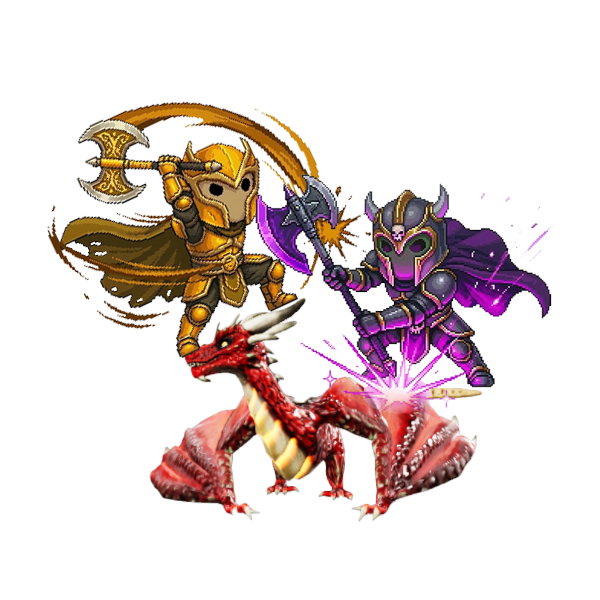
Join Command: By default, viewers type !dragon in chat to spawn their character and attack the boss.
Dragon Max HP: Scale the difficulty to your audience size! You can set the dragon's health anywhere from 1,000 to 100,000 HP.
Attack Cooldowns: To prevent chat spam, you can set a Multi-Participant Interval (e.g., 30 seconds), which forces viewers to wait between their attacks.
Auto-Reset: Keep the game going effortlessly. Enable Auto-Reset and set an interval so a new dragon spawns automatically a few seconds or minutes after the previous one is defeated. If you prefer manual control, use the reset command (default: !resetdragon).
3. Customizing the Visuals
Make the dragon fit perfectly into your specific stream layout:
Dragon Position Slider: Use the slider in your settings to smoothly adjust where the dragon sits on your screen. You can push it all the way to the Left (0), keep it perfectly Centered (50), or move it to the Right (100). The live preview box will show you exactly how it looks!
Participant Count: Choose whether to show or hide the live counter displaying how many hunters are currently attacking.
4. Loot Drops (Dragon Box Gifts)
Give your chat an incentive to slay the beast!
Under the Dragon Box Gifts section, you can add custom rewards (e.g., "1000 Points", "VIP Membership", "Steam Key").
Assign a Chance Percent to each item. When the dragon's HP reaches zero, it will drop one of these gifts based on the probabilities you set. (Note: You must have at least 2 gifts in the pool).
5. Bot Messages & Access Restrictions
Bot Customization: Personalize the automated messages your StreamPlush bot sends to the chat. You can customize the exact text for when the dragon is defeated, when an attack fails, or when a new dragon is spawning.
Access Control: Want to make boss fights an exclusive perk? Toggle Subscribers Only so only your subs can deal damage, or allow your Moderators to manage the game without restrictions.