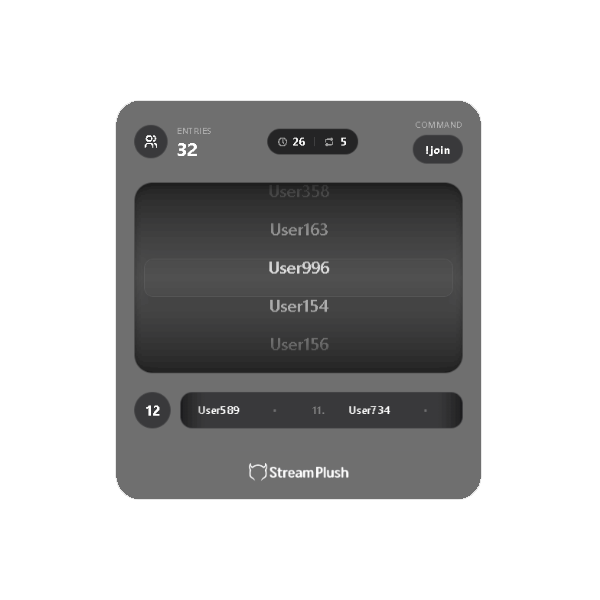
1. Connecting and OBS Installation
To display the giveaway interface on your stream, you need to add the widget to your broadcasting software:
1) Log in to StreamPlush using your Twitch account.
2) Navigate to the Giveaway widget detail page and click the Settings button.
3) Copy your unique Widget Custom URL located at the top of the page.
4) Open OBS (or your preferred streaming software) and add a new Browser Source.
5) Paste the URL and set the dimensions strictly to Width: 600 and Height: 700. Ensure "Allow transparency" is checked.
2. Controlling the Giveaway (Streamer Commands)
You have full control over the giveaway flow using a modern "Base Command + Sub-command" system. By default, your master command is !giveaway (you can customize this base command in your settings).
Start & Stop: Type !giveaway start in your chat to make the widget appear. (Note: Entries are completely closed by default when the widget starts!) Type !giveaway stop to close and reset the widget.
Open/Close Entries: You have precise control over when people can join. Type !giveaway join on to open the gates (the command area will glow!), and !giveaway join off to lock them.
Dynamic Join Word (Pro-Tip): You can change the required join word on the fly for a single session! Type !giveaway start !ticket to instantly make !ticket the required word to enter for that specific giveaway without changing your default settings.
Permanent Join Word: Want to change your default join command forever without visiting the dashboard? Just type !giveaway command !newword.
Hide & Show: Need to temporarily hide the widget without stopping the active giveaway? Use !giveaway hide and !giveaway show.
Drawing a Winner: When you are ready to pick a winner from the participant pool, type !giveaway draw. The widget will play a suspenseful slot-rolling animation before revealing the winner!
3. The Auto-Draw System
Running a massive giveaway with multiple winners? Let the widget do the heavy lifting:
Starting Auto-Draw: Type !giveaway autodraw to begin an automated drawing cycle.
Drawing Multiple Winners: You can specify the exact number of winners you want to draw directly in the chat! For example, typing !giveaway autodraw 5 will automatically draw 5 winners in a row. (The countdown timer between each draw is safely controlled by your dashboard settings).
Stopping Auto-Draw: To halt the automated cycle at any time, simply type !giveaway autodrawstop.
4. Limits and Access Restrictions
Protect your giveaways from spam and restrict them to your most loyal viewers:
Dynamic Join Limits: Set a maximum participant capacity on the fly! Type !giveaway limit 100 to instantly cap entries at 100 viewers. The widget will display the limit in real-time (e.g., 45/100). To remove the limit, simply type !giveaway limit off.
Exclusive Access: Want to reward your community? Toggle Subscribers Only in your dashboard so that only viewers with an active subscription can enter. (Note: If enabled, VIPs and Moderators can automatically bypass this restriction!)
5. Customizing the Winner Message
When the slot animation finishes and a winner is crowned, your StreamPlush bot can automatically announce it in your Twitch chat. Customize this message in your settings, and be sure to include the {username} tag (e.g., "Congratulations {username}, you won the giveaway!") so the bot correctly tags the winner!