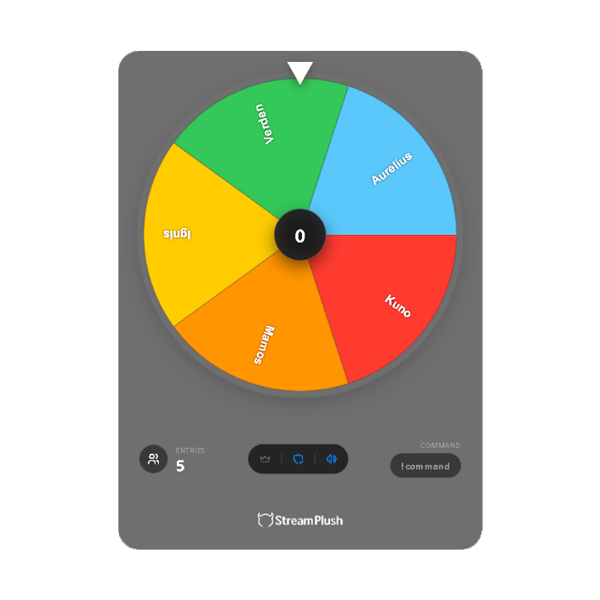
1. Connecting and OBS Installation
To display the wheel on your stream, you need to add the widget to your broadcasting software:
1) Log in to StreamPlush using your Twitch account.
2) Navigate to the Wheel widget detail page and click the Settings button.
3) Copy your unique Widget Custom URL located at the top of the page.
4) Open OBS (or your preferred streaming software) and add a new Browser Source.
5) Paste the URL and set the dimensions strictly to Width: 700 and Height: 900. Ensure "Allow transparency" is checked.
2. Understanding the General Commands
As the broadcaster, you have full control over the wheel using specific chat commands. You can change these triggers in your settings panel:
Start & Stop: Use !wheelstart to make the wheel appear on screen and !wheelstop to reload/stop it.
Hide & Show: Use !wheelhide to temporarily animate the wheel off-screen and !wheelshow to bring it back.
Spinning: Type !wheelspin to spin the wheel to select a winner.
Pro-Tip: Elimination Mode! Type !wheelspin - (with the dash) to spin the wheel in elimination mode. Whoever the pointer lands on will be eliminated and removed from the wheel until only one person remains!
3. Managing Participants (Wheel Management Settings)
Control how viewers get onto the wheel:
Opening/Closing Entries: Type !wheeljoinon in your Twitch chat to open the wheel for entries. Once open, viewers can type your set Join Command (default is !join) to be added. When you're ready to spin, type !wheeljoinoff to lock the entries.
Manual Add/Remove: You can manually add specific users or options by typing !wheeladd [name1], [name2]. If you need to remove someone, type !wheelremove [name].
Clearing the Board: Want to start fresh? Type !wheelclear to instantly remove all participants from the wheel.
Access Restrictions: If you want to host an exclusive giveaway, you can toggle Subscribers Only so only your subs can use the !join command.
4. Sound and Message Customization
Make the wheel fit your stream's aesthetic:
Sound Effects: Toggle the Sound setting to enable or disable the ticking audio effect as the wheel spins.
Bot Messages: Personalize what your StreamPlush bot says when a spin concludes. You can set specific messages for both normal "Winner" spins and "Elimination" spins. Make sure to use the {user} tag in your custom text so the bot tags the correct viewer in your chat!