1. Connecting and OBS Installation
To bring the battlefield to your stream, you need to add the widget to your broadcasting software:
1) Log in to StreamPlush using your Twitch account.
2) Navigate to the Survivor Battle Royale widget detail page and click the Settings button.
3) Copy your unique Widget Custom URL located at the top of the page.
4) Open OBS (or your preferred streaming software) and add a new Browser Source.
5) Paste the URL and set the dimensions strictly to Width: 1920 and Height: 1080. Ensure "Allow transparency" is checked.
2. Setting Up Commands & Limits
Customize how your viewers interact with the game:
Connection & Commands: Define the chat commands viewers will use. By default, viewers type !joinsurvivor to enter the arena, while you (the broadcaster) can type !survivorstart to force-start the match or !survivorreset to clear the board.
Participant Limits: Toggle the Participant Limit on to restrict how many viewers can join a single match (e.g., max 30 players) to prevent screen clutter.
Auto-Start & Auto-Reset: Automate the flow! Turn on Auto-Start to automatically begin the battle once a specific number of players join. Turn on Auto-Reset to have the board clear itself a few seconds after the winner is crowned, ready for the next round.
3. Customizing the Prize Pool & Bot Messages
Give your viewers something to fight for:
Survivor Prize Pool: Add custom gifts (like "VIP Badge," "1000 Channel Points," or "Steam Key") and assign a drop chance percentage to each. When the battle ends, a roulette will spin and award the surviving champion one of these prizes based on your set probabilities. Note: You must have at least 2 gifts in your prize pool.
Bot Messages: Personalize the victory announcement! Customize the message your StreamPlush bot drops in the Twitch chat when someone wins. You can use variables like {user} for the winner's name, {count} for their total kills, and {gift} for the prize they won.
Access Restrictions: Want to host a sub-only tournament? Toggle Only Subscribers to restrict entry, or toggle Allow Moderators to let your mod team manage the game.
4. How to Play (The Streamer Experience)
Once the widget is live in OBS and viewers start typing the join command:
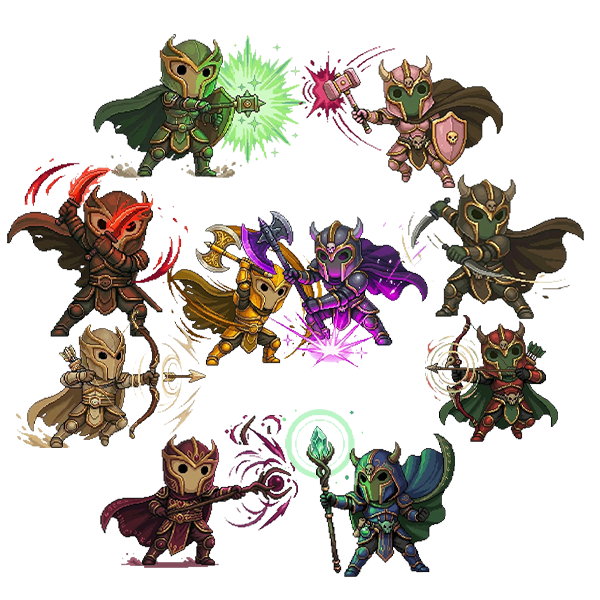
Viewers' names will appear as 2D warriors dropping onto the bottom of your screen. They will pace around the "waiting area."
The game will start automatically if your Auto-Start threshold is reached, OR you can type your start command (e.g., !survivorstart) in chat.
A 3-second countdown will appear, the cinematic overlay will activate, and the warriors will begin auto-battling. They deal damage, score critical hits, and occasionally drink health potions!
When only two players remain, the game enters a dramatic Final Duel mode with a zoomed-in camera effect.
The last warrior standing is declared the Champion, the prize roulette spins, and confetti pops!